
Step-by-Step Guide to Setting Up a Dual SIM 4G Load Balancer
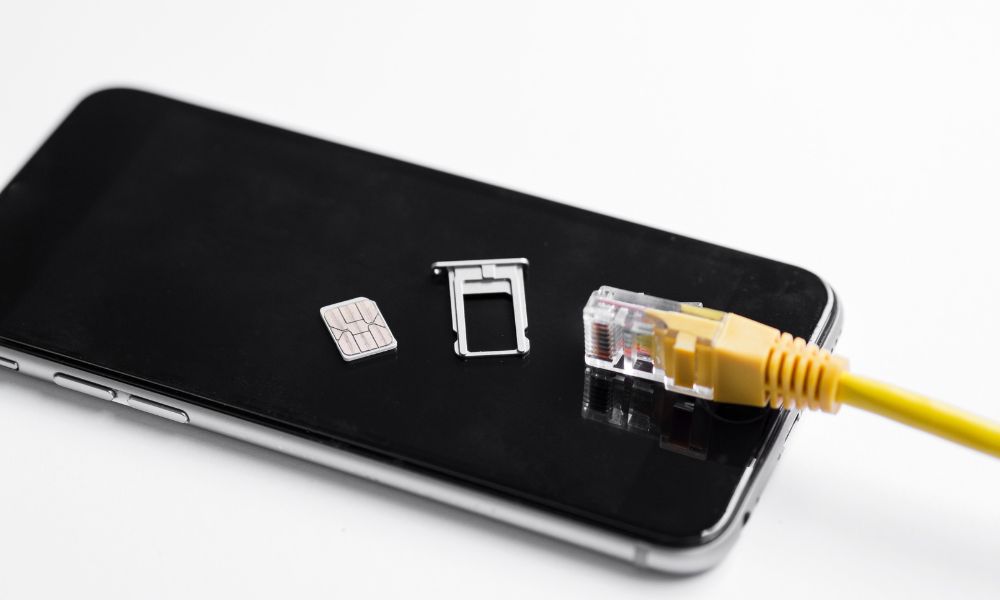
In today’s fast-paced digital world, reliable internet connectivity is crucial for both businesses and home users. Whether you’re running a small office, managing remote work, or simply livestreaming content, a single internet connection often isn’t enough. A Dual SIM 4G Load Balancer is a smart device that addresses this issue by combineingmultiple SIM connections for stable, always-on internet.
If you’ve recently purchased a load balancing router or are planning to, this guide will walk you through how to set up a Dual SIM 4G Load Balancer, along with useful insights on optimizing its performance.
What Is a Dual SIM 4G Load Balancer?
Before diving into the setup, let’s quickly understand what it does.
A Dual SIM 4G Load Balancer is a networking device that can hold two SIM cards. It intelligently distributes (or balances) your internet traffic between both connections. This means if one SIM network is weak or overloaded, the router automatically shifts part of the data load to the other SIM, ensuring continuous internet access.
It is particularly useful for:
- Small businesses needing reliable connectivity.
- Remote or rural locations with unstable broadband.
- small-scale events and surveillance systems.
- Work-from-home steups that require internet at all times.
Step 1: Unbox and Identify the Components
Once you have your Dual SIM 4G Load Balancer, begin by checking what’s inside the box. You’ll typically find:
- The load balancing router unit
- Power adapter
- Ethernet cables
- External antennae (if provided)
- User manual
Before you start, make sure you have two active 4G SIM cards ready for installation. Preferably, use SIMs from different service providers for better reliability and coverage.
Step 2: Insert the SIM Cards
- Power off the device before inserting SIM cards.
- Locate the SIM slots on the front, back, or underside of the router. They are usually marked as Slot 1 and Slot 2.
- Insert both SIM cards in their respective slots.
- Attach external antennae to ensure strong signal reception.
Once the SIMs are securely in place, connect the power adapter and turn on the router.
Step 3: Connect to the Router Interface
Now, it’s time to access the router’s configuration dashboard.
- Connect your desktop or laptop to the LAN port of the router using an Ethernet cable. Some routers may also let you connect to the computer through Wi-Fi.
- Power on the router.
- Open the local dashboard by entering the default IP address in a web browser. It is typically something like 192.168.0.1 or 192.168.1.1; you will find it in the manual.
- Enter the default username and password. This should also be available in the manual.
- We recommend that you immediately change the default password of each device for security purposes. You will find it under the basic information of the device’s settings.
Once logged in, you will be taken to the router’s main control panel where all network settings can be managed.
Step 4: Configure Each SIM Connection
Now open the remote dashboard. For Benlycos, it is edge,benlycos.com. In the settings of the device, locate the Network Settings section.
- Select the first SIM (SIM 1) and choose your network provider if required.
- Enter APN (Access Point Name) details - you can find these from your mobile operator’s website or SIM documentation.
- Save the settings and wait for the router to connect.
- Repeat the same steps for SIM 2.
Once both SIMs are configured, check that they’re connected by verifying the signal strength and data status on the main screen.
Step 5: Enable Load Balancing Mode
This is the core step that allows the router to combine both connections for maximum speed and reliability.
- Go to Network > Load Balancing (or similar section depending on your model).
- Enable Load Balancing Mode.
- You may see options like “Weighted Balance,” “Session-Based,” or “Bandwidth-Based” balancing:
- Weighted Balance: Distributes traffic based on priority (e.g., SIM 1 handles 70%, SIM 2 handles 30%).
- Session-Based: Assigns new sessions to the less busy link for even distribution.
- Bandwidth-Based: Dynamically manages traffic according to available bandwidth.
Select the mode that best suits your needs. For most small businesses, Session-Based Load Balancing offers the best performance balance.
Step 6: Set Up Failover Protection
One of the key features of a dual SIM load balancer is failover capability - ensuring your connection never drops, even if one SIM fails.
To set this up:
- Go to Failover Settings or Backup WAN in your dashboard.
- Assign one SIM as the primary connection and the other as the backup.
- Enable automatic switchover.
This means if your primary SIM loses connectivity, the router automatically shifts traffic to the secondary SIM without interruption.
Step 7: Optimize and Test the Setup
Once everything is configured, run a few tests:
- Open a speed test website to check combined bandwidth.
- Disconnect one SIM temporarily to see if the failover kicks in.
- Monitor connection logs for stability and data usage.
You can also set bandwidth limits, prioritize critical applications (like video calls or POS systems), and monitor real-time traffic from the dashboard.
Step 8: Maintain and Monitor Regularly
Keep your router’s firmware updated for improved performance and security. Many load balancers also support cloud-based monitoring, which lets you check connection health remotely perfect for businesses with multiple locations.
Regular monitoring ensures that your router continues to balance loads effectively and provides stable connectivity as data usage grows.
Smarter Connectivity, Simplified
A Dual SIM 4G Load Balancer is one of the smartest investments you can make for consistent, high-speed internet connectivity. By combining the strength of two networks, it eliminates downtime, improves bandwidth, and keeps your business or home connected at all times.
Setting it up might seem technical at first, but once configured, it delivers seamless, worry-free performance every day.
For organizations across India adopting advanced network solutions, Benlycos Pvt Ltd offers a range of reliable bonding and load balancing devices designed to meet modern connectivity needs empowering users to stay online, productive, and connected wherever they are.